> For the complete documentation index, see [llms.txt](https://docs.keeping.com/help/llms.txt). Markdown versions of documentation pages are available by appending `.md` to page URLs; this page is available as [Markdown](https://docs.keeping.com/help/fundamentals/custom-views.md).
# Custom Views
Use custom views to create personalized filters for your personal Keeping inbox.
## What are Custom Views?
Custom Views are personalized filters that you can save to your Keeping sidebar for quick, one-click access. If you find yourself repeatedly applying the same combination of filters to find specific tickets, Custom Views let you save that combination and access it instantly.
Each agent can create their own Custom Views, so every team member can organize their sidebar in the way that works best for them.
{% hint style="info" %}
**Good to know:** Custom Views are personal to each agent. They are not shared with other team members. Each agent can create and manage their own set of Custom Views.
{% endhint %}
## Creating a Custom View
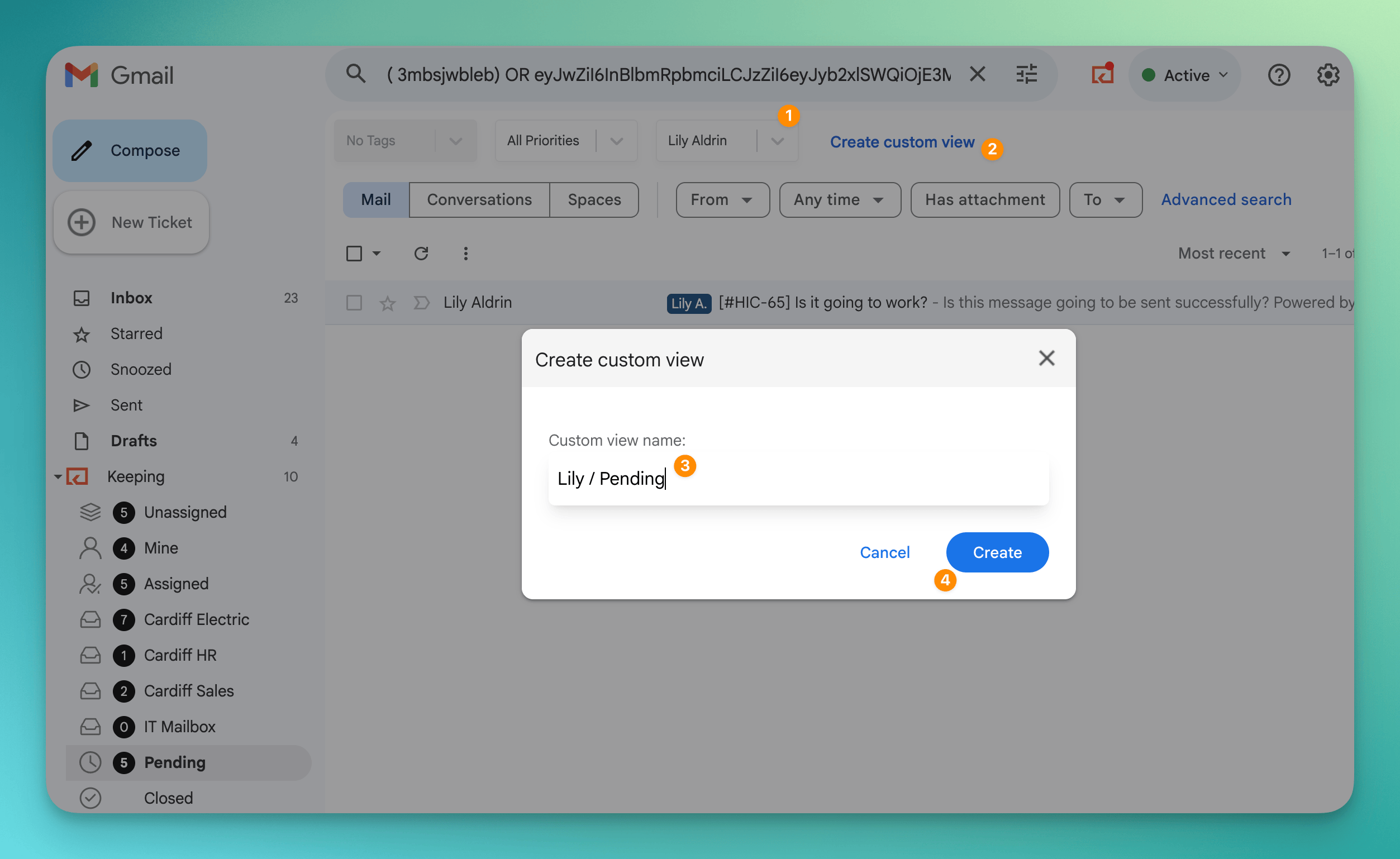
To create a Custom View, start by applying one or more filters to your ticket list. You can filter by **assignment**, **status**, **tag**, **priority**, or any combination of these.
Once you have at least one filter selected, a **Create custom view** link will appear to the right of your active filters.
Click **Create custom view** to open the naming dialog. Enter a name for your view (up to 20 characters), then click **Create** to save it.
{% hint style="info" %}
The **Create** button will remain disabled until you enter a name for your view.
{% endhint %}
## Creating a Custom View from a Mailbox
You can also create a Custom View while viewing a specific mailbox. When you do this, the mailbox is included as a constraint on the Custom View, so the saved view will always show tickets from that particular mailbox with your chosen filters applied.
For example, if you are viewing your **Support** mailbox and filter by **High priority** tickets assigned to **Me**, saving that as a Custom View will always show high-priority tickets assigned to you in the Support mailbox.
## Creating a Custom View from Pending
You can create a Custom View while viewing the **Pending** primary filter. The pending status will be preserved as part of your Custom View, so you can quickly access pending tickets that match your other filter criteria.
## Where Custom Views Appear
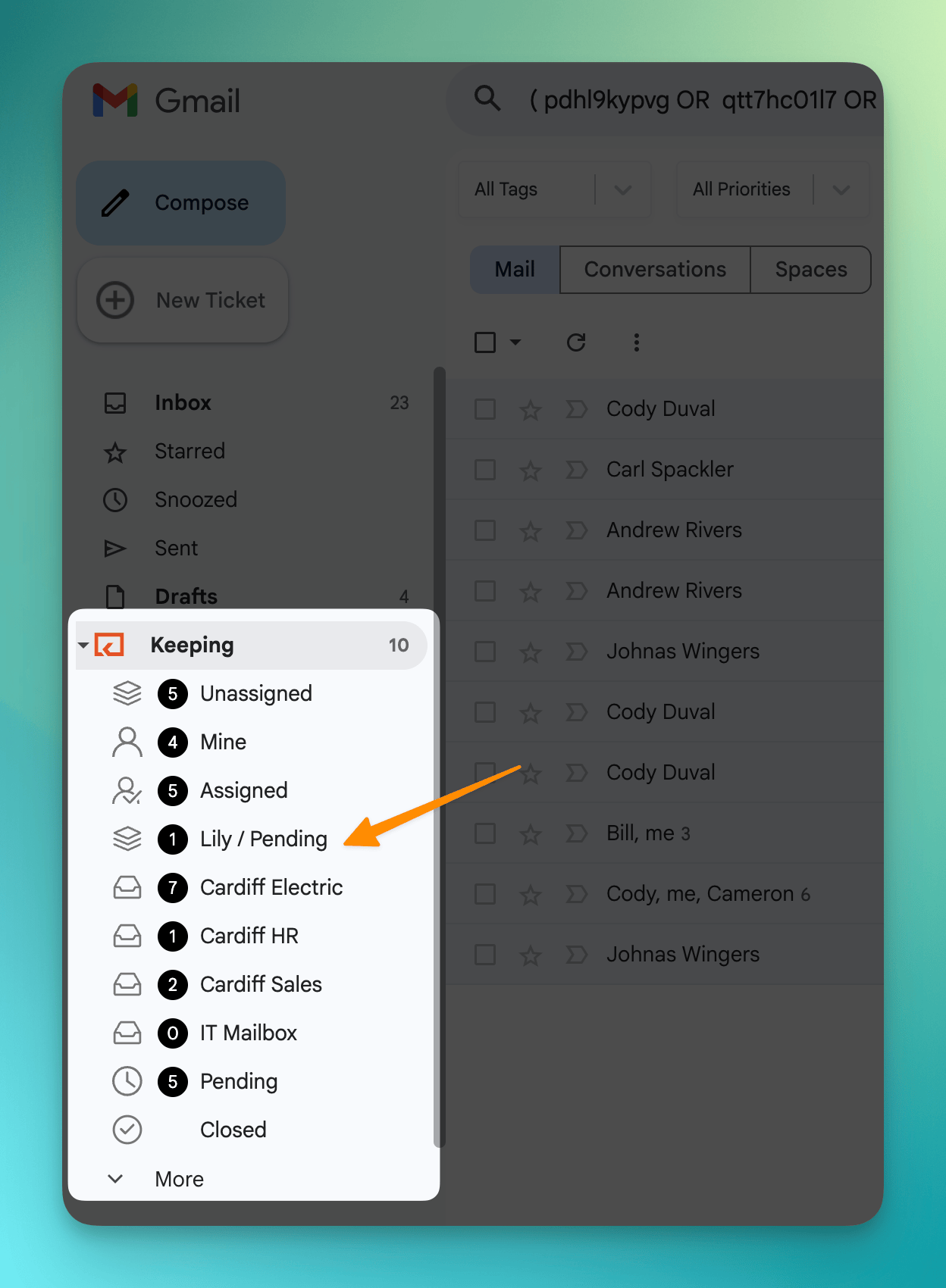
Your saved Custom Views are added to the left sidebar, above your mailbox list and below the **Assigned** label. This gives them prominent placement for quick access.
Click any Custom View in the sidebar to instantly load that filtered list of tickets.
## Managing Custom Views
To delete a Custom View you no longer need, hover over the view in the sidebar and click the **X** icon that appears. This will remove the view from your sidebar. Since Custom Views are personal, removing one will not affect any other agent's views.
{% hint style="warning" %}
Deleting a Custom View cannot be undone. You will need to recreate the view by applying the same filters and saving it again.
{% endhint %}
## Tips for Using Custom Views
* **Keep names short and descriptive** — You have up to 20 characters, so use clear labels like "My Open High Pri" or "Unassigned Bugs."
* **Combine multiple filters** — The real power of Custom Views comes from saving multi-filter combinations you use frequently.
* **Use mailbox-scoped views** — If you manage multiple mailboxes, create views scoped to specific mailboxes to quickly switch between them.